When you hear the word collate, it might seem technical or confusing, especially if you’ve encountered it in printing, office work, or digital applications. But understanding collate is simpler than it looks—and it can save you a lot of time and headaches when handling documents, reports, or multiple copies of anything.
In this article, you’ll learn what collate means, how it differs from sorting or arranging, practical steps to collate in both print and digital environments, and real-life examples that make it easy to apply. Whether you’re a student, office worker, or printer operator, this guide has everything you need.
Collate: Definition and Basic Meaning
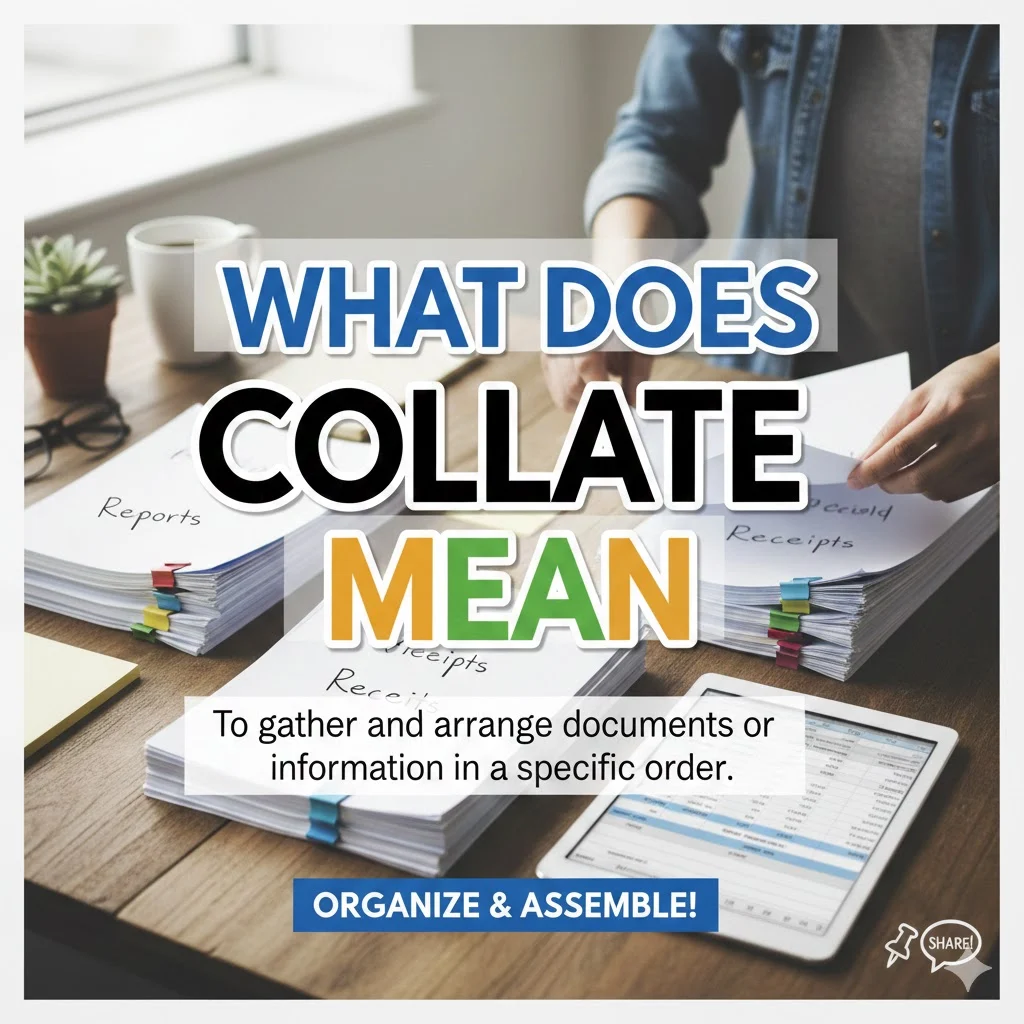
Collate means to collect, arrange, and organize items—usually papers or documents—in a specific order. It’s all about putting things in a logical sequence so that they’re ready for use, distribution, or printing.
- In simple terms: Collating ensures that the pages of a document, report, or booklet are in the correct order.
- Example: If you have a 10-page report and print five copies, collating will organize each copy from page 1 to page 10 instead of printing all page 1s first, then all page 2s, and so on.
Origin of the term: The word collate comes from the Latin collatus, meaning “to bring together.”
Why it matters: Misordered documents can cause confusion, waste time, and even create errors in professional or academic work.
Collate in Different Contexts
Collating isn’t limited to paper. It applies in multiple environments, from printing and office work to digital documents. Let’s break it down.
Collate in Printing
In printing, collating is the process of arranging printed pages in their proper sequence before binding or distribution.
Key Points:
- Collate vs Sort: Sorting arranges documents based on a criterion (like alphabetical order). Collating keeps the order of a single document intact across multiple copies.
- Collate Sheets: These are stacked in sequence for printing, e.g., page 1, page 2, page 3, repeat for each copy.
Table: Collated vs Non-Collated Printing
| Feature | Collated | Non-Collated |
|---|---|---|
| Page Sequence | Pages 1–10 per copy | All page 1s, then page 2s |
| Copies Prepared | Each complete copy ready | Needs manual reorganization |
| Ideal For | Reports, booklets, exams | Large bulk printing where order doesn’t matter |
Tip: Many modern printers have a collate button. Activating it ensures that multiple copies are printed in the correct sequence.
Collate in Documents & Office Work
Collating isn’t just for printers. It’s essential for reports, assignments, legal papers, and office documentation.
- Purpose: Ensures documents are in logical order, easy to distribute, and error-free.
- Collate vs Arrange: Collating maintains sequential order; arranging might organize documents by topic or department.
- Collate vs Sequence: Sequence is the intended order, collating is the act of arranging in that sequence.
Example Scenario:
Imagine you’re preparing a monthly report with 50 pages. Without collating, someone receiving five copies might get page 1 from copy 1, page 2 from copy 2, and so on. Collating ensures each copy has pages 1–50 in proper order.
Collate in Digital Tools
Collating isn’t limited to physical documents. Digital files, spreadsheets, and reports also require proper collating.
- Microsoft Word: You can select the “Print Collated” option when printing multiple copies. This prints each document in full order.
- Excel: Collating helps organize data in rows or columns, especially when creating reports for multiple recipients.
- Data Processing: Collating files ensures all data points are grouped and ready for analysis.
Pro Tip: Digital collating saves time and reduces errors in both office and educational environments.
How to Collate: Practical Guides
Whether working manually or digitally, collating can be straightforward if done step by step.
Collating Papers Manually
Step-by-Step Guide:
- Arrange pages in numerical order.
- Stack one complete copy at a time.
- Repeat until all copies are prepared.
- Use clips or bands to keep stacks organized.
Tips:
- Check for missing pages before collating.
- Use color-coded tabs for large sets of documents.
- Consider investing in a manual collator if you handle hundreds of pages regularly.
Collating Using Printers
Modern printers make collating easy with built-in features.
How to Collate in Printer Settings:
- Open the print dialog.
- Select the number of copies.
- Look for “Collate” checkbox and activate it.
- Print the document.
Table: Printer Collate Options
| Option | Function |
|---|---|
| Collated | Prints each copy sequentially (pages 1–10 per copy) |
| Uncollated | Prints all copies page by page |
| Duplex Collate | Prints double-sided and in order |
Tip: Always preview before printing large batches to ensure correct order.
Collating in Data & Reports
Collating is essential for organizing data for reports, presentations, or analytics.
- Example: Combining data from multiple Excel sheets into a single sequential report.
- Steps:
- Collect all data files.
- Arrange by date, ID, or relevant criteria.
- Merge files into a single document.
- Verify sequential order.
Common Confusions and FAQs
Collate is often confused with sort, staple, or sequence. Let’s clarify.
Collate vs Sort
- Collate: Maintains sequential order across copies.
- Sort: Arranges items by specific criteria, like alphabet or numerical value.
Collate vs Staple
- Collate: Organizes pages in order.
- Staple: Physically binds pages together.
Vs Sequence
- Sequence: The intended order of pages.
- Collate: The act of arranging pages to match that order.
Example: You have three reports, each 10 pages:
- Collate: Each report has pages 1–10 in order.
- Staple: Pages are fastened, but may not be in order.
- Sequence: Shows the intended order, whether collated or not.
Real-Life Examples of Collate
Collating appears in many everyday scenarios:
- Office Reports: Preparing monthly or annual reports for distribution.
- School Assignments: Teachers collating student submissions.
- Event Brochures: Organizing multi-page flyers or programs.
- Legal Documents: Ensuring contracts and case files are sequential.
Quote:
“Collating may seem simple, but it prevents errors that can cost hours of work.” – Office Organization Expert
Tips for Efficient Collating
Efficiency is key when collating large documents.
- Use technology: Printers and software often have collate features.
- Label sections: Helps identify and organize different parts of a document.
- Work in batches: Reduces mistakes for high-volume printing.
- Check twice: Always review collated documents before distribution.
LSI Keywords Applied: Document management, organize papers efficiently, sorting and collating, collate files.
Summary Table: Collate vs Related Terms
| Term | Definition | Example |
|---|---|---|
| Collate | Arrange pages or documents in proper order | Printing 5 copies of a 10-page report |
| Sort | Organize items based on a criterion | Alphabetizing student names |
| Staple | Bind pages together | Fastening a 10-page report |
| Sequence | The intended order of pages | Pages 1–10 for each report copy |
| Arrange | Organize items without maintaining strict order | Sorting reports by department |
Conclusion
Understanding what collate means is more than a technical skill—it’s a practical tool for saving time, reducing errors, and staying organized. Whether you’re printing, managing office documents, or handling digital reports, mastering collating ensures every page lands in the right place.
Next time you print multiple copies, prepare reports, or merge files, remember: collating is your key to efficiency and accuracy.
Key Takeaways:
- Collate ensures proper order of pages in both print and digital documents.
- Differentiate collate from sort, staple, and sequence.
- Use printer and software features to automate collating.
- Always review collated materials to prevent mistakes.